RoonPilot
The rotary ring, touch controls and zone settings remain the single user interface.
IR Bridge 1.0.0 for RoonPilot 2.0.2. The official firmware and Bridge Web Installer are available. Existing paired Bridges can be updated from RoonPilot; installation is always manual.
Optional hardware extension
RoonPilot IR Bridge adds learned infrared volume, mute and power control to any selected Roon zone—without modifying RoonPilot or installing another service.
Watch the installation video01
Each zone decides independently whether Roon or the Bridge receives its commands.
The rotary ring, touch controls and zone settings remain the single user interface.
Receives the action for its assigned zone or group member, schedules the learned frames and drives the transmitter.
Your DAC, amplifier or active speaker sees the same command as from its original remote.
A practical example
For an RME ADI-2 DAC connected to a WiiM zone, RoonPilot can send the original RME infrared volume commands instead of changing Roon’s digital volume. The DAC therefore performs the level change itself and retains its Auto Ref Level behaviour.
02
The Bridge stays simple at the equipment rack while RoonPilot manages setup, profiles, routing and updates.
Every Factory installation creates a unique RPB-… identity. Select it deliberately in RoonPilot to confirm the first encrypted pairing.
RoonPilot guides the recording of volume, mute and separate power actions. Known protocols are analysed; unknown signals retain their raw timing.
BLE is preferred nearby. If enabled and BLE becomes unavailable, authenticated local Wi-Fi takes over automatically and returns control to BLE when it recovers.
When Bridge & Bluetooth is disabled in RoonPilot, Bluetooth, scanning, Bridge update checks and all Bridge background work remain off after restart.
03
The Bridge needs no separate app, web interface, cloud account or background service. From the first pairing to a signed firmware update, every normal task is managed from RoonPilot.
Close-range trust. Whole-home reach.
Initial setup always begins nearby over Bluetooth LE. RoonPilot scans for the factory-generated RPB-… identity, asks you to select the intended unit and establishes an encrypted, bonded connection. That deliberate first contact is the trust anchor for everything that follows.
Allow Wi-Fi fallback is an explicit, optional second step. While the trusted BLE link is active, RoonPilot sends the current 2.4 GHz network details and a newly generated 256-bit application key to the Bridge. BLE stays preferred. Confirmed BLE trouble can move control to authenticated local Wi-Fi; RoonPilot returns to BLE only after reliability checks, not after one good signal reading.
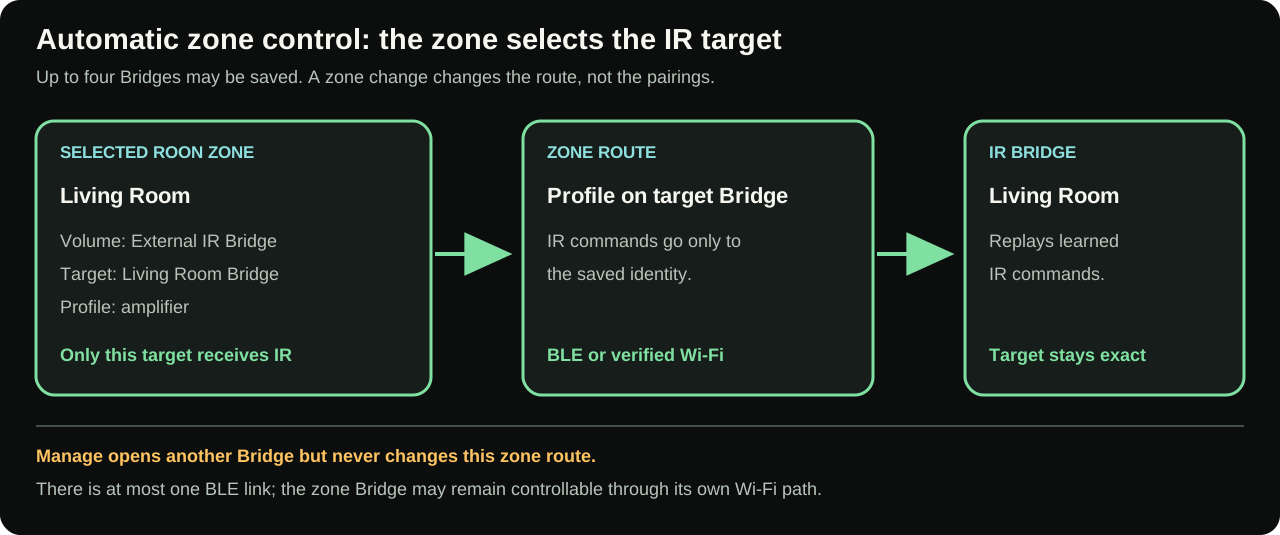
One RoonPilot can remember up to four Bridges. In normal Automatic zone control, the selected zone determines the required IR routes. For a Roon group, RoonPilot monitors and operates every Bridge assigned to its physical members. Manage may temporarily administer another Bridge over BLE while active zone or group routes continue over verified Wi-Fi. There is at most one BLE link but multiple independently authenticated Wi-Fi paths.
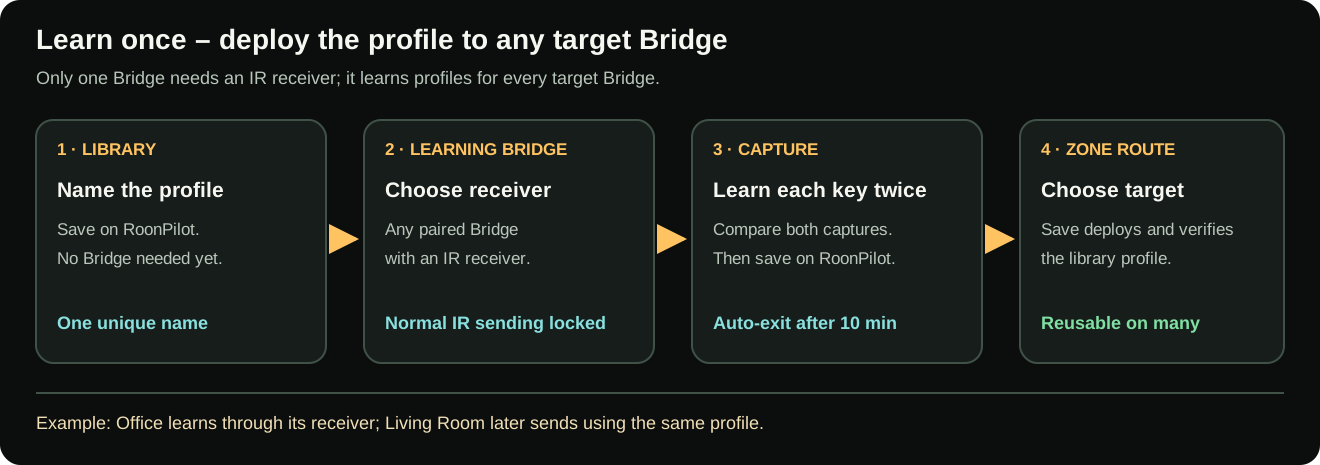
For multiple Bridges, a single IR receiver on one learning Bridge is enough. It captures profiles for every zone; RoonPilot stores them permanently and later deploys them even to target Bridges without receivers.
The Bridge page follows RoonPilot's global English/German setting. Roon metadata, physical RPB-… identities and names entered by the user remain unchanged.
Nothing is exposed to the internet: transport choice, connection health, signal strength and recovery remain visible and testable from the same RoonPilot page.
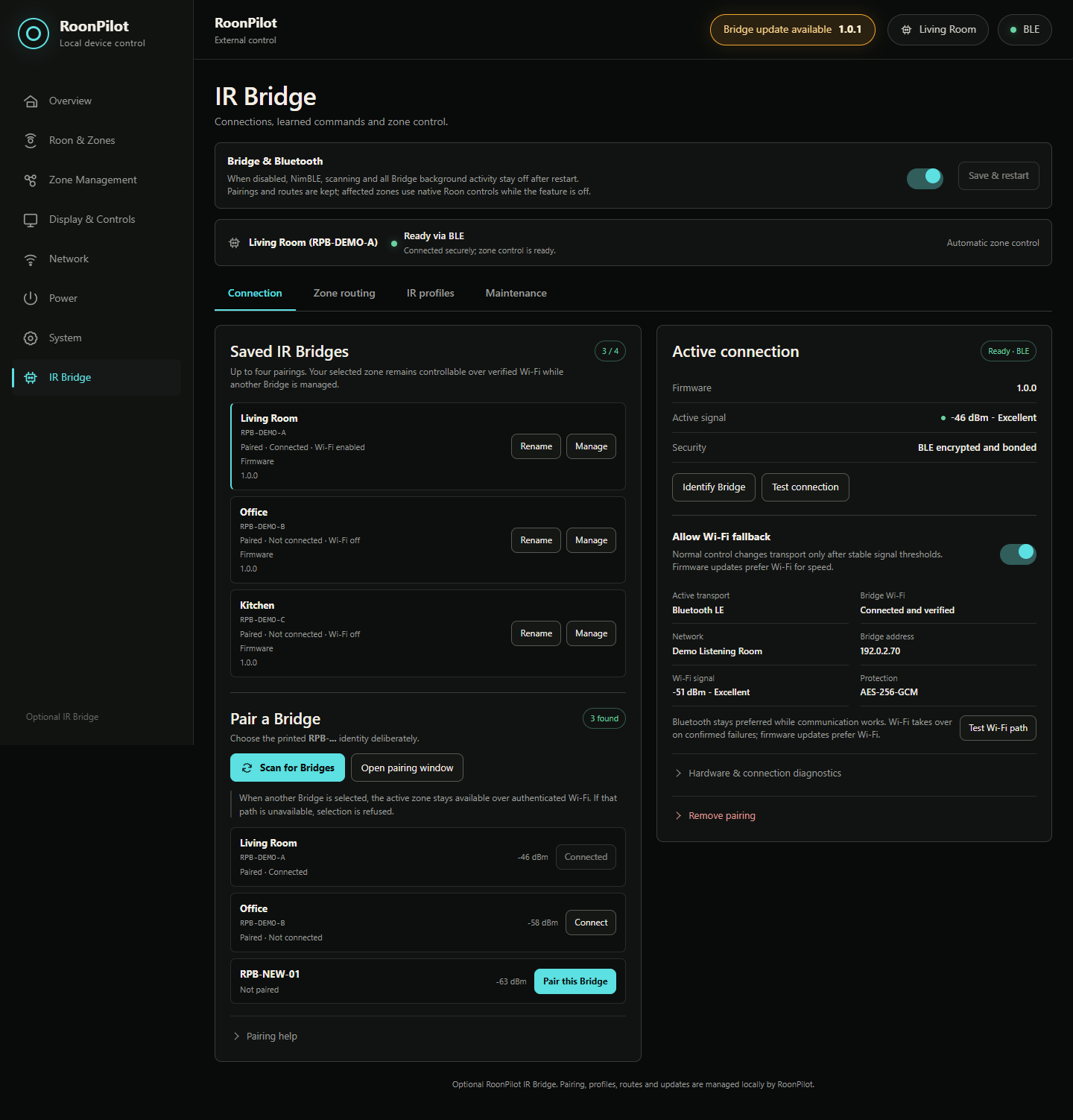
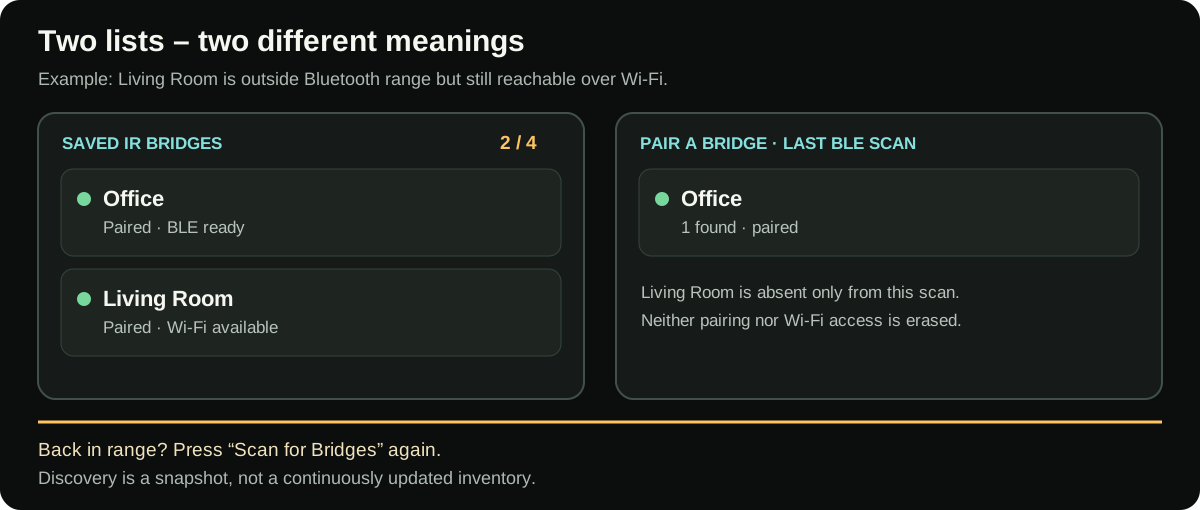
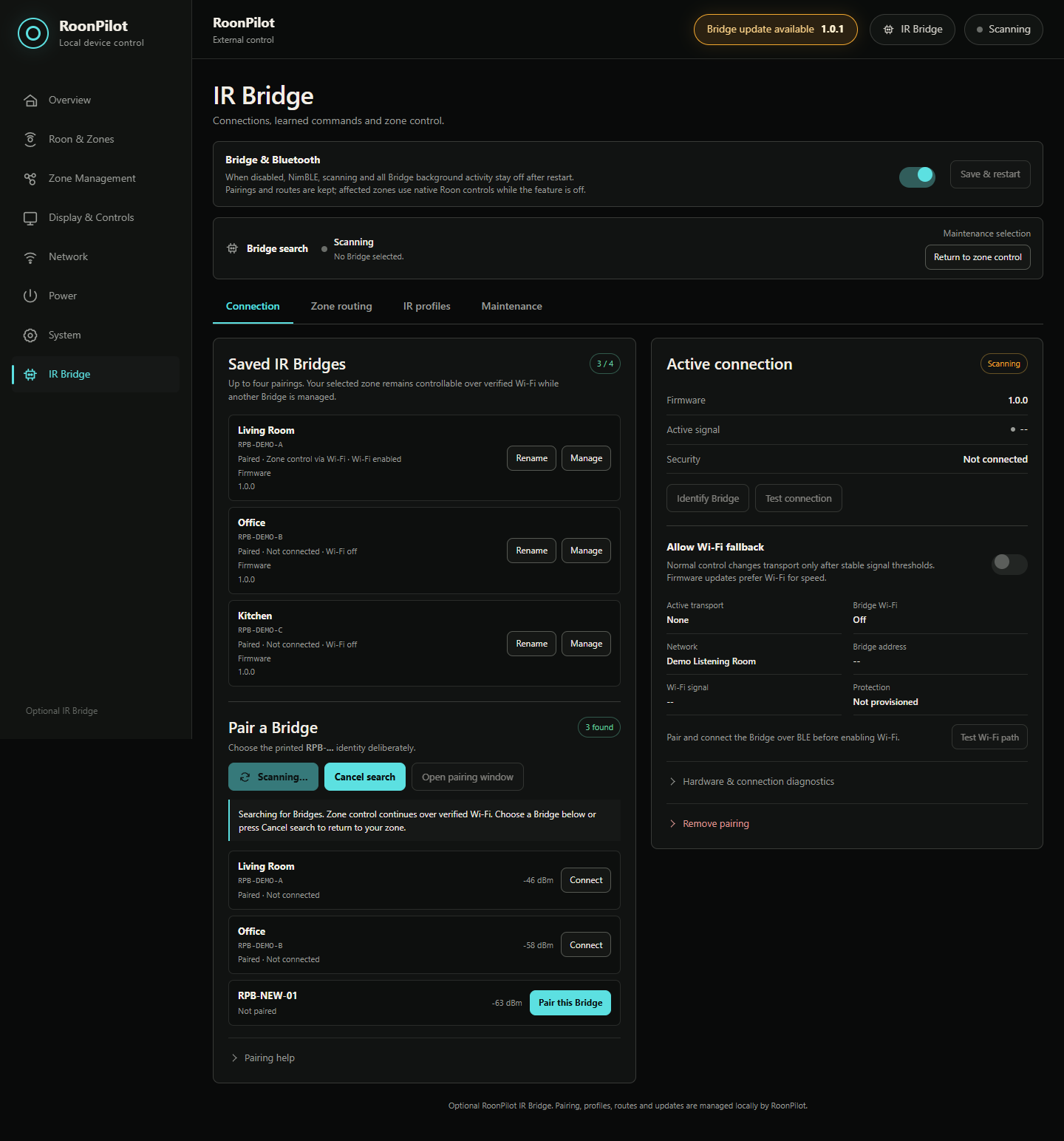
Scan nearby Bridges, compare the unique identity and complete encrypted bonding without opening the enclosure.
Create named equipment profiles, record every command twice, inspect recognised protocol data and test the real hardware immediately.
Mix native Roon volume, external IR volume and deliberately disabled control across different zones, each with its own encoder step and optional Power/Mute buttons.
Save settings, routes and each named IR profile once, with separate Bridge assignments. Restore a profile to a paired replacement Bridge or share it across several Bridges.
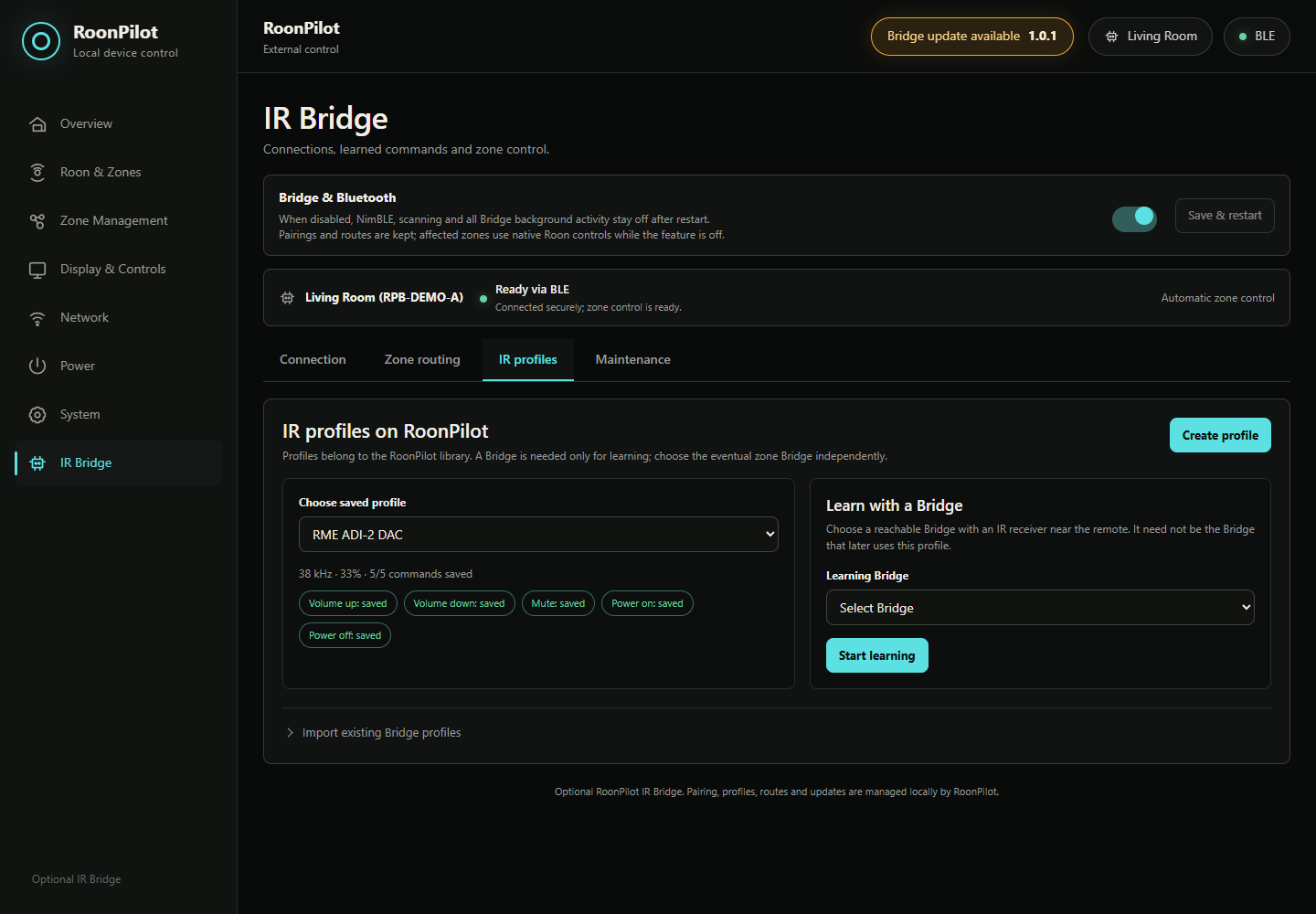
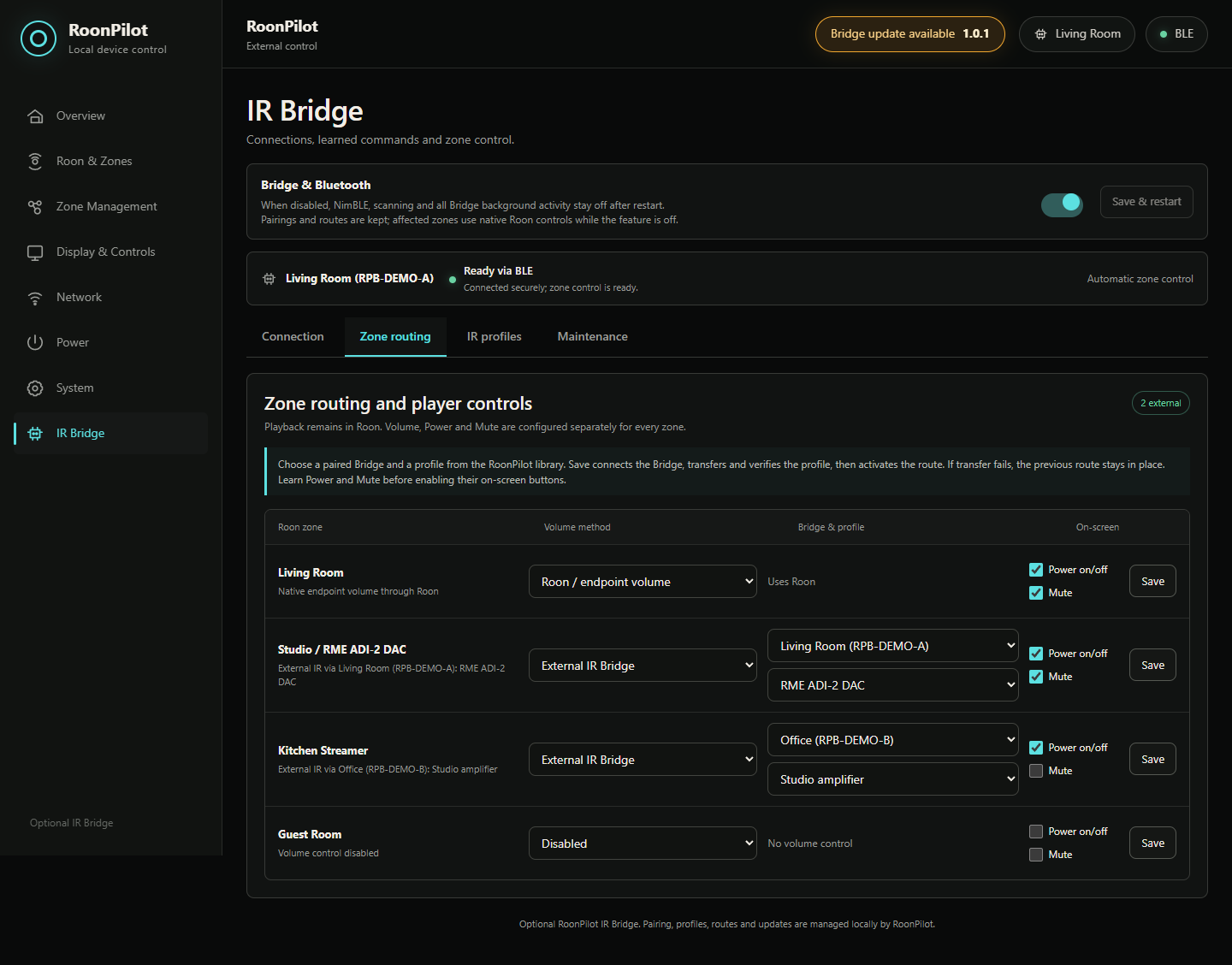
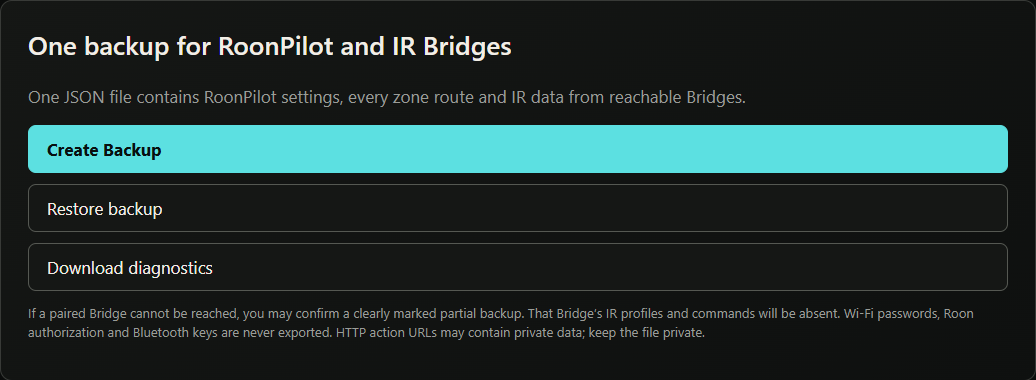
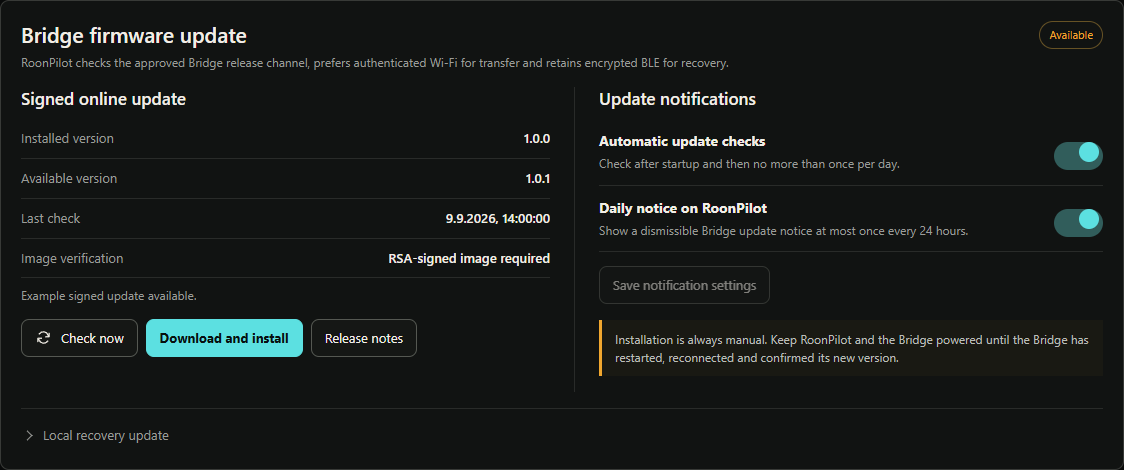
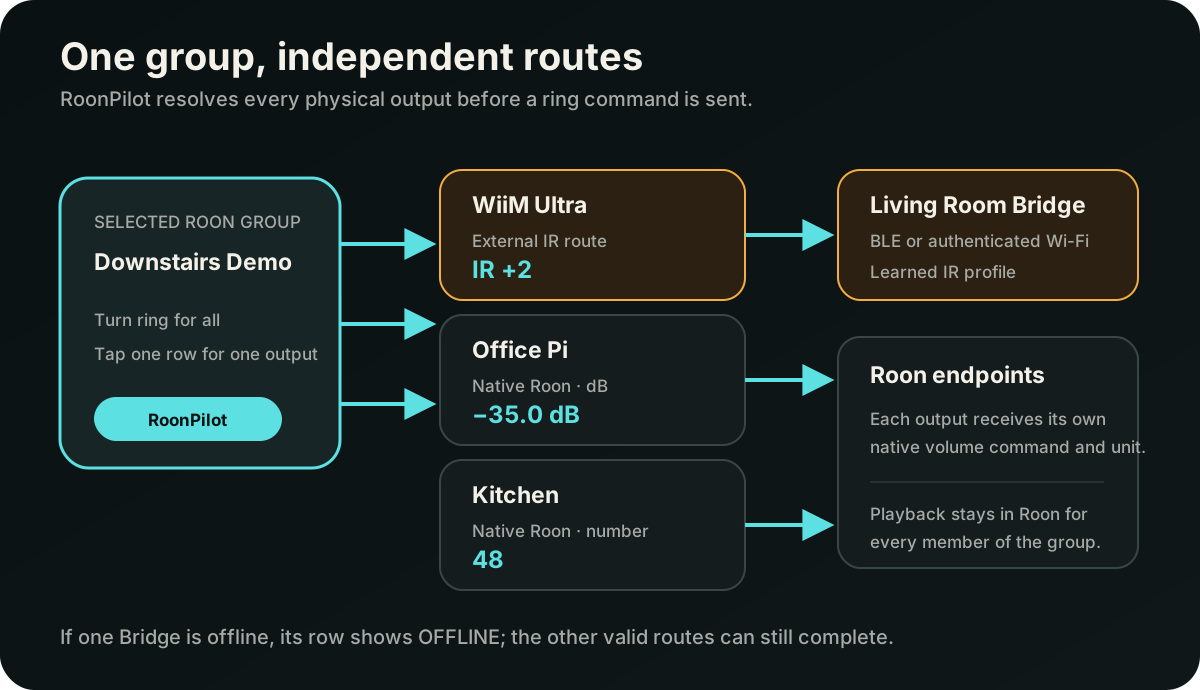
Automatic control follows every IR member of the selected Roon group, not only its lead output.
A nearby Bridge can use BLE while other group members use authenticated Wi-Fi.
An offline Bridge marks its own route unavailable and never borrows another member's profile.
Failures and reconnections are reported per Bridge without flooding the display or event log.

The same local interface, anywhere at home
The responsive Bridge page is served by RoonPilot itself. It lets you inspect the active transport and manage the complete extension from a desktop, tablet or phone connected to the local network. The Bridge remains an appliance beside the audio hardware—RoonPilot remains the product you operate.
See every management step in the guideCommands remain on the local network. The Bridge is a small hardware companion, not another service to maintain.
04
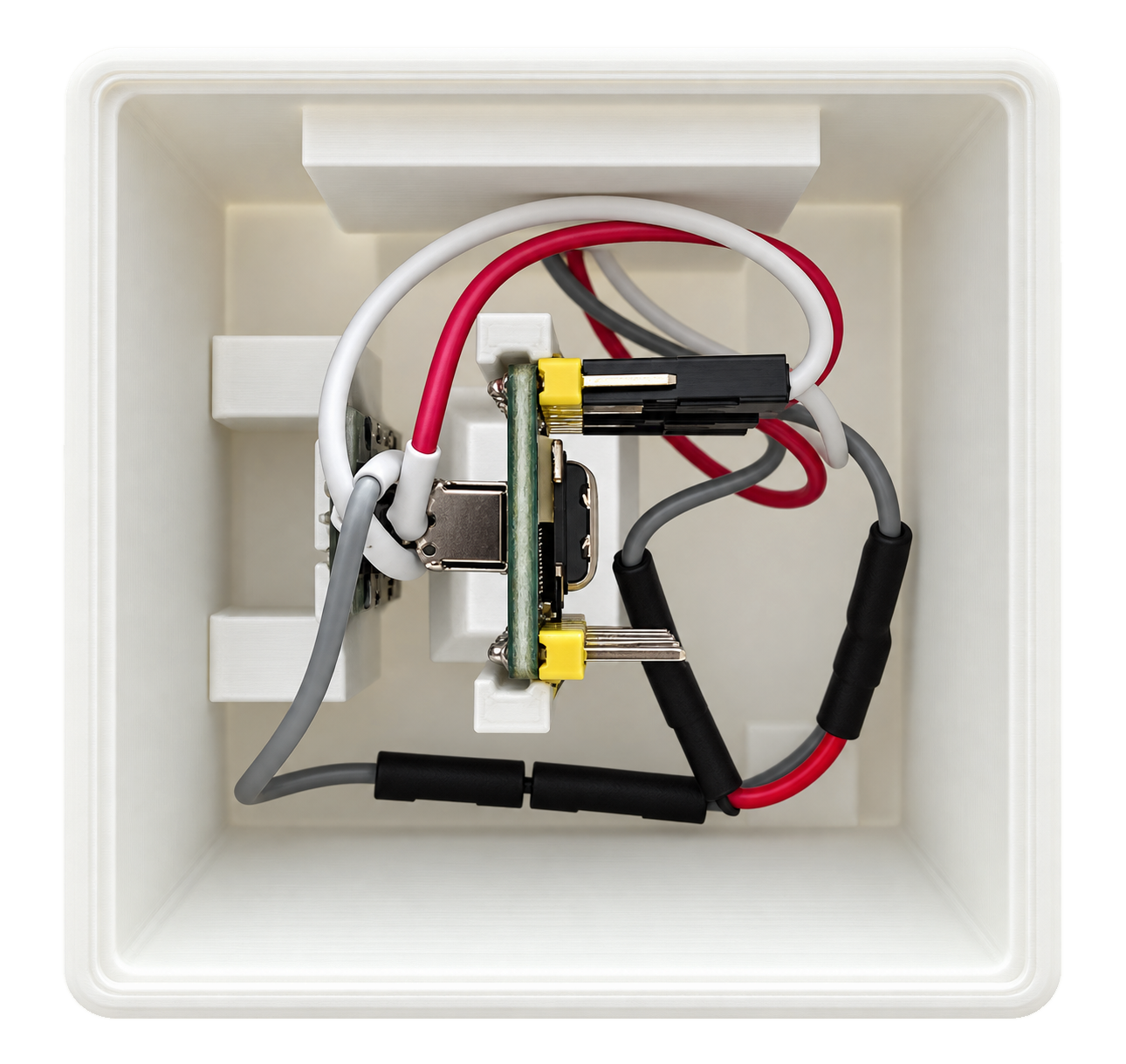
The target build uses a small ESP32-S3 board, an infrared receiver for learning and a dedicated transmitter for reliable range.
The supported transmitter is the Adafruit High Power Infrared LED Emitter 5639. Verify reach, emitter direction and enclosure temperature in the physical installation; reflective rooms and hidden placement can change infrared reliability.
Adafruit IR transmitter Official Waveshare board documentation AZ-Delivery IR receiver Controller board listing05
The small RGB LED is on the ESP32-S3-Zero. It remains off during normal operation; RoonPilot's Bridge page provides the ongoing connection status.
| LED pattern | Meaning and required action |
|---|---|
| Off | Normal operation. A dark LED does not mean the Bridge is powered off or disconnected. |
| Slowly pulsing blue | A pairing window is open; the Bridge can be found and deliberately paired in RoonPilot. |
| Two short blue flashes | The encrypted pairing completed successfully. |
| Repeated short blue pulses for about 1.5 seconds | Identify Bridge was requested in RoonPilot. |
| Pulsing orange | The learning Bridge is waiting for or recording an IR signal. Normal IR transmission is blocked while learning. |
| Two short green flashes | Two matching IR captures were stored. After pulsing violet, green means the firmware was accepted and restart follows. |
| Two short red flashes | IR learning failed or timed out. After pulsing violet, red means firmware transfer or verification failed. |
| Pulsing violet | Firmware is being transferred or verified. Never remove power. |
After a short confirmation, the LED turns off again or resumes showing an open pairing window. Cancelling IR learning ends the orange signal without a red failure indication. Open the detailed explanation in the Bridge guide.
06
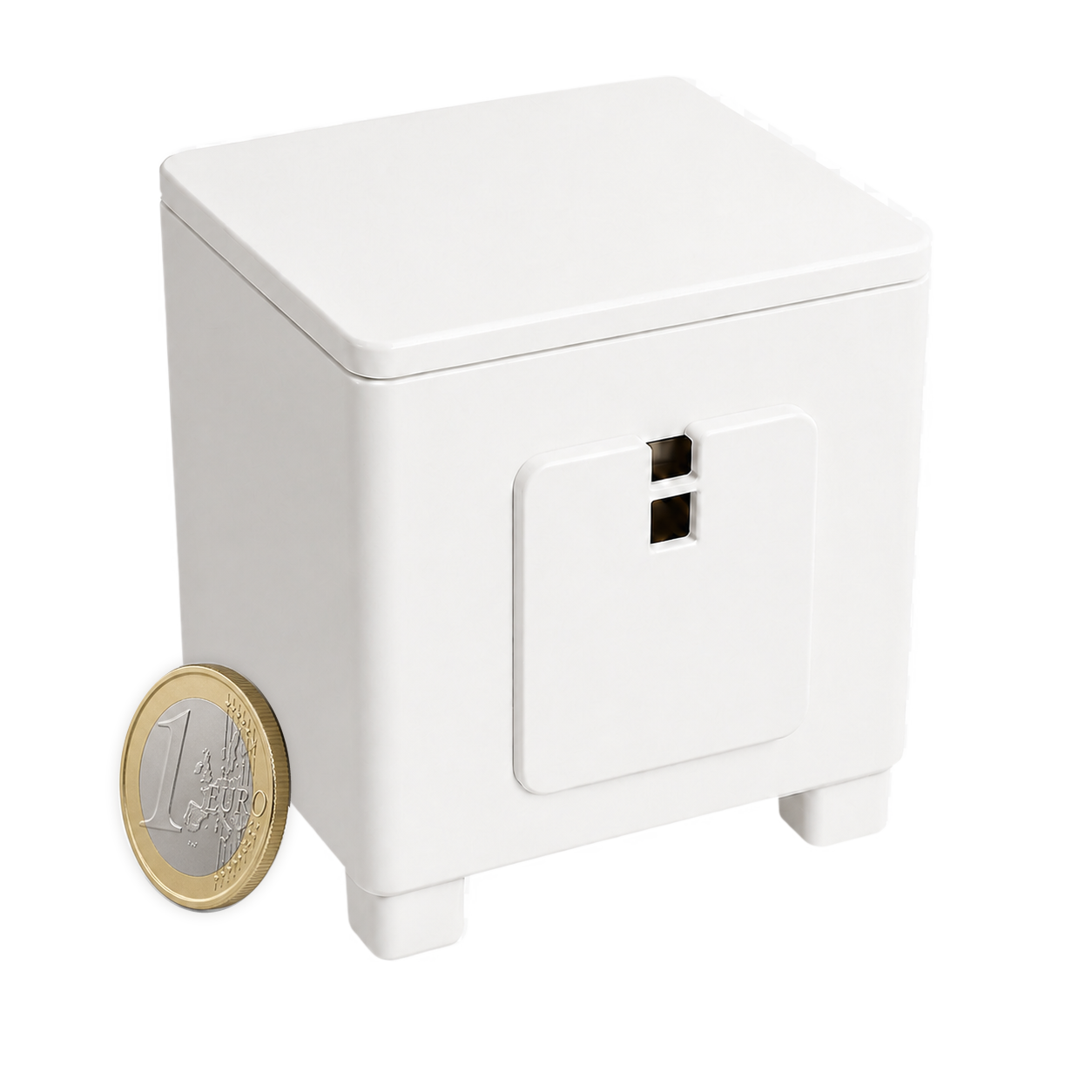
The supplied body, lid, emitter cover and two alternative foot lengths package the tested Bridge hardware while keeping USB, status light and infrared paths usable.
Five downloadable models
Choose either the short foot set for compact USB-C plugs or the longer set for additional clearance—never mix both lengths. A receiver is optional on target Bridges: one receiver-equipped learning Bridge can capture the named profiles for every other paired unit.
ZIP with all five STL files. For printing, choose one set of four matching feet: long or short.
Use a USB-C cable with a short connector housing whenever possible. If the cable plug is still too long, the longer foot set provides additional clearance. Always use four matching feet. Disconnect USB before fitting the lid, keep both IR openings clear and repeat the range test after closing the enclosure.
07
Initial USB installation is separate; everyday configuration then happens entirely through RoonPilot.
Connect the receiver, sender and a shared ground using the verified pin map.
Use desktop Chrome or Edge. Factory installation erases Bridge identity, pairing and profiles.
Enable Bridge & Bluetooth, start pairing and confirm the displayed RPB identity.
Use any receiver-equipped learning Bridge; the eventual target Bridge does not need a receiver.
Select IR in Zone Management and choose its independent encoder step count.
Create one combined setup backup, then install future signed updates directly from RoonPilot.
08
Installed and available versions appear on the Bridge page and, when enabled, as a dismissible notice on the device.
Two independent checks
No unattended installation: RoonPilot may check for a new Bridge version and show a notice, but download and installation start only after explicit confirmation.
HTTPS manifest, project, board, protocol, controller version, file size, embedded version and SHA-256 are checked first.
The Bridge verifies block order, size, SHA-256 and the RSA signature before selecting the inactive OTA partition.
After restart, RoonPilot waits until the Bridge reconnects and reports the exact requested version.