
Roon
Control your zone, playback and volume directly through Roon Server. Choose playlists and My Live Radio stations from lists. Configure everything in the extension’s settings gear.
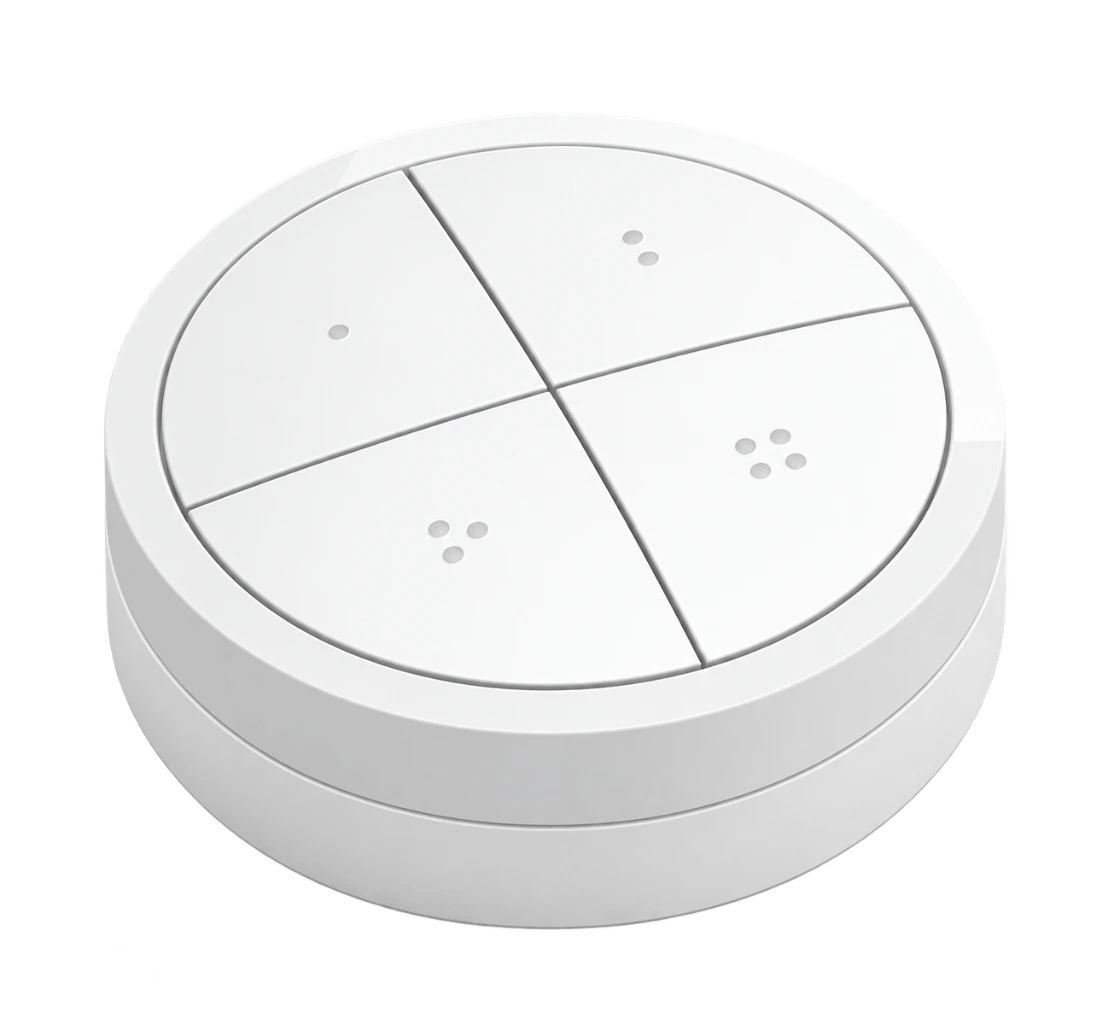
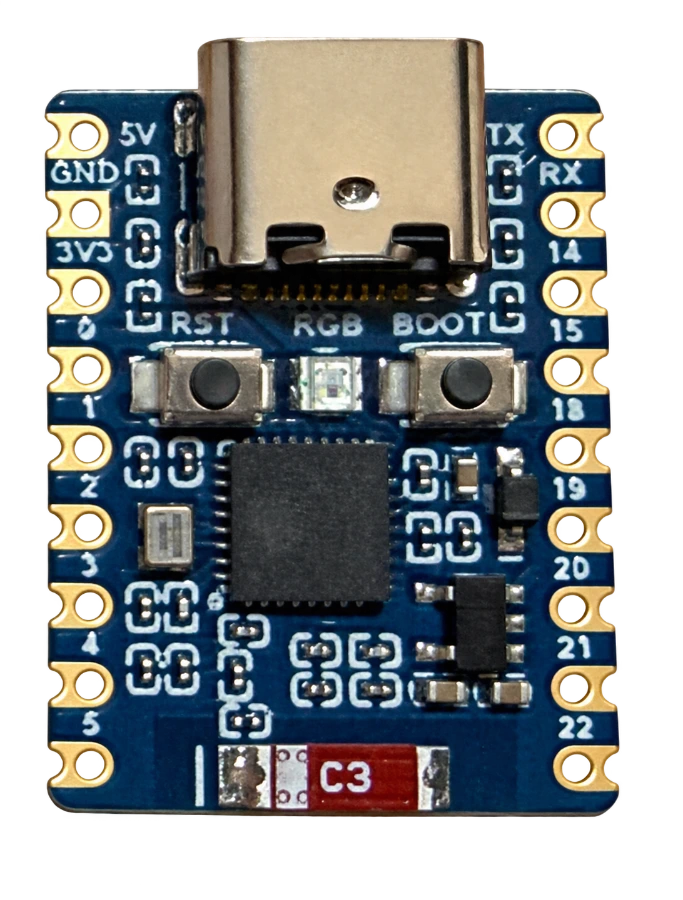
How to set it up →A Philips Hue Tap Dial. A tiny ESP32-C6. Your favourite music in Roon, BluOS, WiiM, infrared, RME Bridge and Sonos – controlled by a real dial and four configurable buttons.
* Manufacturer specification for the Tap Dial. Actual battery life depends on use; no DialCaptain long-term measurement is available yet.
01
One mode is active at a time. Settings for the other modes stay saved.
Control your zone, playback and volume directly through Roon Server. Choose playlists and My Live Radio stations from lists. Configure everything in the extension’s settings gear.
How to set it up →Control Bluesound, NAD and other BluOS players directly over your home network. Discover your player, select its saved presets and assign short and long button actions.
How to set it up →Control WiiM directly through its local API. Use presets saved in WiiM Home. Assign playback, previous/next and optional native WiiM volume to the dial.
How to set it up →Learn up to ten commands from your audio remote. Assign the ring and short/long buttons directly. Requires additional IR modules on the ESP; normal operation also works without Wi-Fi.
Wire it and set it up →Control the active RME DAC output directly through the bridge over Wi-Fi. With dB steps, an optional ceiling and buttons for mute, AutoDark and DAC power. No Roon or RoonPilot required.
How to set it up →Direct control of a room in an S1 or S2 system. Discover your room, choose volume steps and assign Sonos favourites or saved playlists to the buttons.
How to set it up →No extra computer. The firmware runs on the ESP. No Hue Bridge, Raspberry Pi, Docker, MQTT or always-on PC is needed. Roon mode still requires Roon Server.
A controller, not an audio player. The ESP does not stream music, act as a Roon audio endpoint or replace your player or DAC. A Tap Dial belongs to one Zigbee network at a time.
02
A dial, an ESP and your existing audio system are all you need.
03
Initial setup runs directly over USB in your browser. No setup Wi-Fi network or 192.168.4.1 address is involved.
Open Chrome or Edge, connect the ESP with a USB data cable and select it in the installer.
Close the installer dialog. Set up as new or immediately restore a backup from the same ESP.
Select your 2.4 GHz Wi-Fi. For Roon, also choose your server and approve the extension.
Open web configuration, pair the Tap Dial and choose a profile and configure its actions.
04
Four buttons, short and long actions and your own dial response. Each mode keeps its own profile.
Enable the extension, select a zone and assign the buttons. Choose a language independently of Roon. The Tap Dial battery reading appears in the extension status after its first report.
Read the complete instructions →Select a player discovered on your network or enter its address. Choose its saved presets, button actions, sensitivity and volume steps in dB.
Read the complete instructions →Find your WiiM, choose presets from WiiM Home and assign buttons. Direct WiiM volume is a separate option, initially disabled in a new profile.
Read the complete instructions →Capture twice, check and save. Ten command slots for volume, playback, input or power. IR assignments stay separate from the network profiles.
Read the complete IR guide →Active DAC output, dB steps and an optional ceiling. Mute, AutoDark and power through the RME Bridge; playback remains independent.
Read the complete instructions →Choose S1 or S2 on your home network. Three favourites from Sonos favourites or saved playlists, short/long buttons and optional group volume.
Read the complete instructions →05
Case, lid and two foot options — preview every part and download the original STL files.
06
The complete guide also covers first pairing, backups and troubleshooting.
No. The ESP is the Zigbee coordinator. DialCaptain works independently. RoonPilot and an RME Bridge may complement your Roon system, but are not required.
All six profiles stay saved. Saving activates the new mode. Your Roon zone, authorization, favourites and separate mappings for every profile are not erased by switching.
Roon: 1–4 native Roon steps per click; the chosen output determines the unit. BluOS: 0.5 / 1 / 2 dB. WiiM: optional 1 / 2 / 5 percentage points. IR: 1 to 3 learned button steps per click. RME Bridge: 0.5 / 1 / 2 dB. Sonos: 1 / 2 / 5 percentage points. Sensitivity and step size are separate settings.
Yes. File export includes settings and the stored Tap Dial/Zigbee association for the same ESP. The file includes credentials and is saved on your computer.
Roon, BluOS, WiiM and direct RME Bridge control have device-test coverage. Sonos is in device testing: discovery, lists and volume have been checked on S1 and S2. S2 favourite/playback tests have succeeded; the final S1 favourite test still needs a working, current entry. Group volume has not yet been tested with multiple speakers. Infrared is implemented and software-tested; real modules, range and radio-load tests remain open. Complete first pairing and restore after an actual factory flash also require hardware acceptance. Eversolo and OTA are not implemented.